
Using Coupons from Your Mobile Device
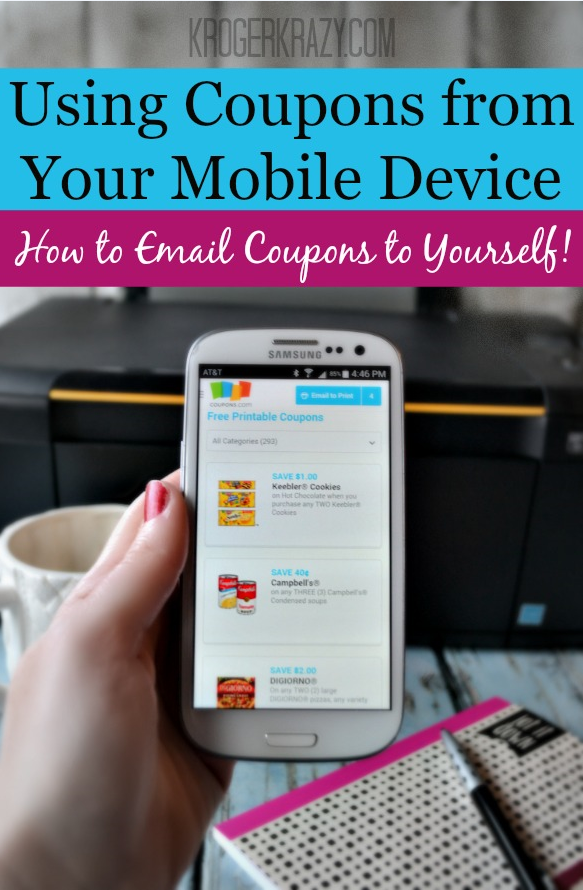
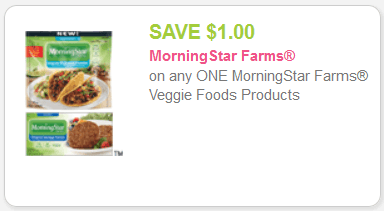
Do you view printable grocery coupons from your smartphone or tablet? You can now clip coupons and email them to yourself to print when you have access to a computer and a printer. Follow these easy instructions.
Here’s how to use the Email-to-Print feature in a coupon gallery while on a mobile device:
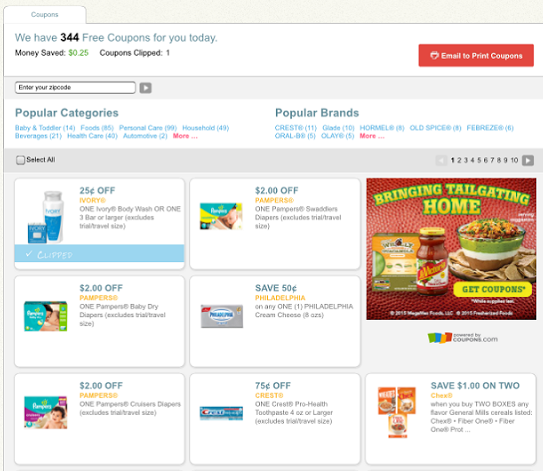
1. Select the coupons you like and click the “Email to Print Coupons” button (this is normally where you saw the print button).
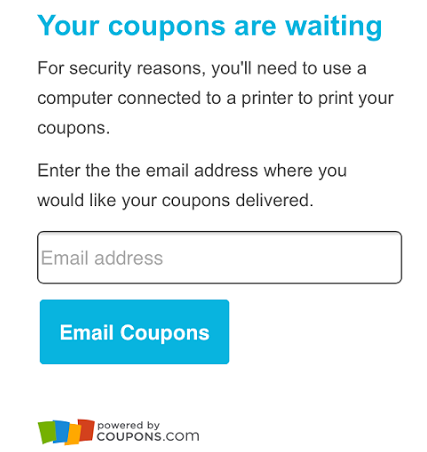
2. Enter your email address and click on “Email Coupons”.

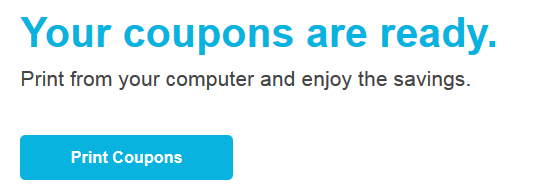
3. Check your email once you have access to a computer and a printer, then follow the “Print Coupons” link to your coupons to print. This is what my email looked like as soon as I opened the message. It took less than one minute for my coupons to appear.
4. The coupons that you emailed to yourself will be pre-clipped once you click print coupons as shown above. You’ll be ready to print and head to Kroger!
I love this option because many of you check out my deals via a mobile device but can’t print those awesome coupons that show up. This will help you in making sure you don’t forget about the awesome coupons. Please be aware that you’ll need to be using the “desktop” version from your mobile device.

If you are in the mobile version, simply go to the bottom of the page and you’ll find two buttons, one that says mobile and one that says desktop. Click on the “desktop” tab and you’ll be rerouted to do what the instructions show above!


Save 


Stock up on